
Last updated: March 11, 2024
Available with any of the following subscriptions, except where noted:
 Marketing Hub
Professional
,
Enterprise
Marketing Hub
Professional
,
Enterprise
|
 Content Hub
Professional
,
Enterprise
Content Hub
Professional
,
Enterprise
|
| Legacy Marketing Hub Basic |
Tracking URLs help you measure the effectiveness of your marketing campaigns by providing information to HubSpot when visitors access your site through the URL.
Create a tracking URL when you want to track traffic from a campaign to a page with the HubSpot tracking code. Examples include email blasts, PPC campaigns, and banner ads. You can also use the URL from your scheduling pages and add parameters in the Tracking URLs tool.
A tracking URL is a normal URL with parameters attached to it. When visitors come to your site from a tracking URL, HubSpot saves the information in those parameters.
Learn how to analyze traffic data from tracking URLs in the traffic analytics tool.
Please note: marketing Reporting permissions are required to create a tracking URL.
Create a tracking URL
- In your HubSpot account, click the settings icon in the top navigation bar.
- In the left sidebar menu, navigate to Tracking & Analytics > Tracking URLs.
- In the upper right, click Create tracking URL.
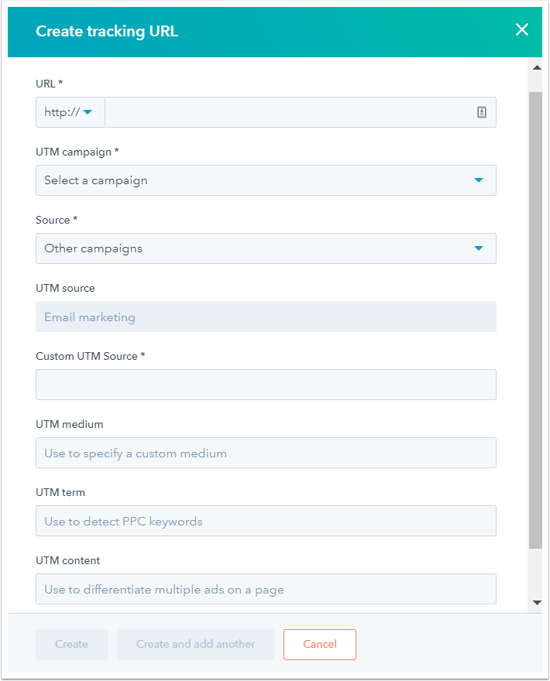
- In the right panel, set up your tracking URL.
- Enter a valid URL for your page, and select the appropriate protocol (http:// or https://). This can be the URL of any page with the HubSpot tracking code on it.
- Click the UTM campaign dropdown menu and select the HubSpot campaign you want visits to this tracking URL to be bucketed under in your analytics tools.
Please note: a campaign name is required when creating tracking a URL because the campaign name is used in several reports in HubSpot. Visits to the tracking URL will be attributed to this campaign in the sources report and will count towards the analytics for the campaign in the campaigns tool.
- Click the Source dropdown menu and select the source for your tracking URL. This will affect where the visit will be categorized in your analytics, including the traffic analytics tool.
- Email marketing: select if you're using the link in a marketing email.
- Paid search: select if you're using the link in a paid search campaign.
- Organic social: select if you're using the link in a social media post.
- Paid social: select if you're using the link in a paid social media campaign.
- Other campaigns: select and enter a Custom UTM Source. This is best used when you want to give a custom source (e.g., FB_Campaign_1).
- The UTM Medium field is optional. Enter the name of your banner ad, social post, email, etc. For sources bucketed under Other campaigns, the medium is visible when you drill down into a specific campaign. This is typically the last visible parameter in your tracking URLs that you build in HubSpot.
- The UTM term field is optional. It can be used in systems like AdWords and Google Analytics to track the keywords in a pay-per-click ad.
- The UTM content field is optional. Enter a name for an ad if you have multiple on your page and want to differentiate between them.
- Click Create. If you want to create another tracking URL immediately after, click Create and add another.
Add a tracking URL to your content
- In your HubSpot account, click the settings icon in the top navigation bar.
- In the left sidebar menu, navigate to Tracking & Analytics > Tracking URLs.
- Hover over your tracking URL, click the Actions dropdown menu, and select Copy tracking URL. You can also copy the shortened link by clicking Copy short URL.
Please note: due to recent changes in AdWords ads, if you're using HubSpot tracking URLs in Google AdWords ads, please be sure to use the full link, not the shortened link. Insert the full link into the HubSpot Full Tracking URL into the Final destination field in AdWords ads. The Final destination field must contain the same domain as the landing page URL. For example, if your ad's landing page is http://offers.yoursite.com/demo the Final destination field must contain yoursite.com.
- Add the the URL to your content.

