As a marketer, tracking and analyzing data is an important part of the gig. But there are so many different metrics you can track. Where do you begin? (And better, how do you ultimately improve your metrics once you understand them?)

After you know what you want to track, you should consider how often you plan to review your metrics. And guess what - not all metrics should be treated equally. In fact, there are some things that make more sense to track on a weekly basis versus once per month.

Why is it important to check some metrics weekly? Because it can help you pivot and adjust your marketing campaigns more quickly, potentially leading to a more successful month.
In this post, we're going to cover some of the most important metrics you should track weekly. In other words, you should develop a healthy habit of checking the following metrics consistently throughout the month. Then we'll go over how to improve them, as well as how to prepare for the following week.
7 Metrics Every Marketer Should Check Weekly
1. Blog Post Views
Tracking the number of views you get per blog post is great way to get quick feedback on your blog articles. You're more likely to get a higher view count if you picked a topic your audience liked and wanted to share.
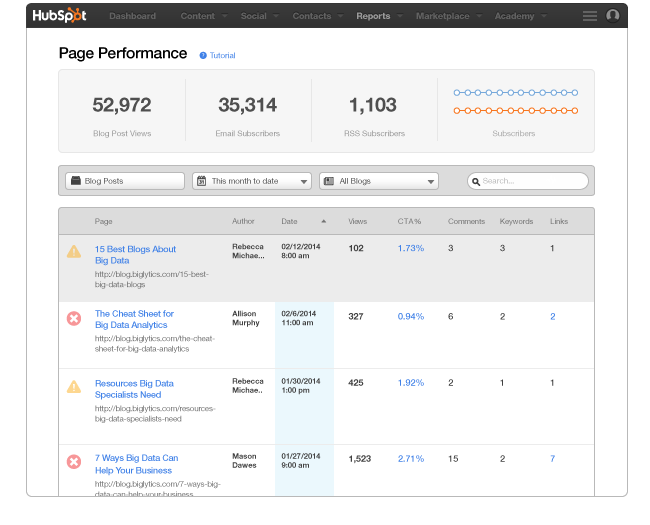
Using HubSpot's Page Performance, you can see how many views you got on each post, as well as your total view count. To do this, sort the columns within the tool by number of views, and pick a time frame like one month. Now you can see how your recent posts have performed against each other.
Want an extra tip? You can also compare your recent posts' view counts to your overall average by exporting Page Performance and running an average of all your posts in Excel.
How to Improve Your Blog Views
Measure blog post views to figure out which blog content is performing the best. Knowing what content naturally got the most views can help you decide what topics and types of posts to write next.
Now use this information to plan out your next few weeks of content. What types of blog posts should you write? What might your audience like to read? By looking at this information week over week, you can make adjustments to your content schedule to improve your results.
2. CTA Click-through Rates
After someone reads your content, you want that person to take the next step and click on your CTA, ideally to direct the visitor to a landing page. The metric you should most closely measure for CTAs is your click-through rate, or the percentage of folks who clicked on the CTA. Using HubSpot’s CTA tool, you can track the performance of different CTAs and see which ones are performing best.
HubSpot Professional and Enterprise customers can even take it a step further and show a Smart CTA based on a reader's lifecycle stage or membership to a list. HubSpot Enterprise customers have the option to A/B test their CTAs.
Below is an example of what the CTA dashboard will look like. For a deeper dive into each metric on the dashboard, visit our help documentation.

How to Improve Your CTA Click-through Rates
First, take a look at what CTAs are performing the best today. Then, decide if there are higher conversion rates on certain types of CTAs, as well as what might cause that better performance. Is it the design of the CTA? The positioning? Is the content that the CTA is promoting more intriguing than others? For example, if you have high conversion rates on CTAs that lead to a worksheet and lower conversion rates on CTAs that lead to a blog post, that may mean your audience prefers worksheets over other forms of content. Don't be afraid to experiment to figure out why certain CTAs perform better.
3. Social Media Reach
Tracking the performance of your social media is important to understanding its ROI. To help, all HubSpot customers have access to Social Inbox, which offers many ways to both use and measure social.
A social media goal that many companies have is increasing the size of their social network, or their total number of fans and followers. Why is a large social reach valuable? So when you publish your blog posts and content, you can reach a larger number of people who might read and share it.
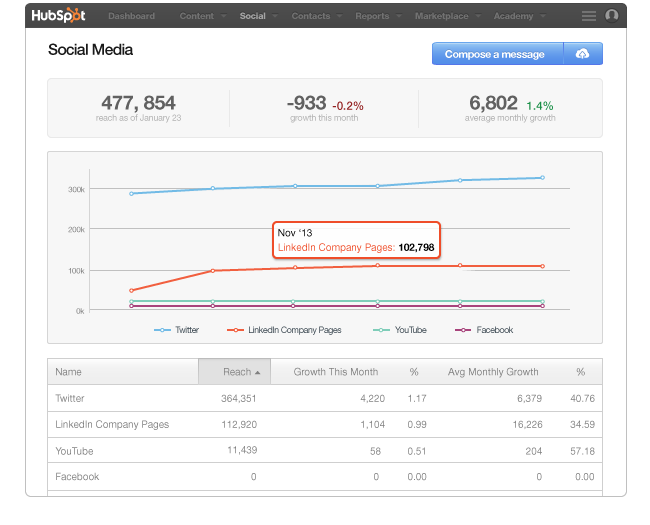
In HubSpot's Social Inbox, track your social reach growth. See a bump? What did you do differently last week that might have helped you grow your network? Important to note, even though this report gives monthly data, you can still drill into individual weeks to see the progress you're making.
How to Improve Your Social Reach
If you see an increase in your progress from a particular week, think about what you did to attract more followers or fans around that time. Was there a marketing campaign going on? Did a hashtag you used start trending? What type of content did you publish on these channels?
Once you figure out the secret ingredient to your improvement on social media, try to replicate it. Maybe it was just a fluke that you had an increase in your fans or followers, but maybe there is actually a science to it!
It is important to check these stats on a weekly basis so the strategy and the content you posted on social media is fresh in your mind. After you decipher what caused your social improvement, use it to form next week's social media plan.
4. Email Click-through Rates
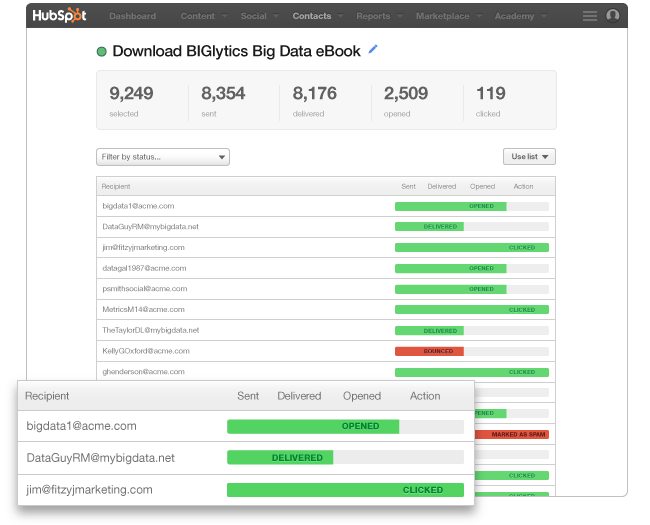
When you do email marketing, the most important metric is not how many people opened your email, but how many people clicked through to whatever the email was promoting. That could be the number of people who clicked a link in your email or clicked on the CTA. This metric is known as your email click-through rate. In HubSpot, you can get all of that data through the HubSpot email tool.
Bonus: If you are a HubSpot Enterprise customer, you can A/B test your emails too. The CTR of each email variation will help you determine what email elements are most successful. When using HubSpot, your two A/B test variations will go to two small segments of your entire list, say 15% to version A and 15% to version B. Once there is a clear winner, HubSpot will send the rest of your list that winning variation! Not too shabby.
How to Improve Your Email Click-through Rates
By measuring your email marketing, you will get a sense of what your audience wants to read by email. (Sometimes your content may perform well on email and not other channels, so it is worth experimenting.) Take a look at the performance of different emails and look closely at the ones that performed the best. Did you promote a particular piece of content? Did you use a certain tone? How clear were your calls-to-action? Based on what you discover, create similar emails that embody some of the tactics that made your emails successful in the past. To understand more about email CTR, visit this article from the HubSpot Marketing blog.
5. Landing Page Conversion Rates
Arguably the most important metric for marketers to keep their eyes on is lead conversion, or the percentage of visitors who convert into contacts by filling out a form on a landing page. The conversion rates of your landing pages will then determine how many leads you are able to generate.
Using HubSpot’s reporting tools, you can measure the success of individual landing pages. You can see how many people are visiting your landing pages, the conversion rate of those pages, and how well the leads generated from those pages become customers. These metrics will help you determine which content offers and landing pages to use when marketing through other channels.
How to Improve Your Landing Page Conversion Rates
Take a look at your landing page dashboard. Which pages have the highest conversion rates? Which pages have the most views? Look closely at your high-performing landing pages to see what made them successful. Was it the content piece on the page? Is the form optimized for your audience? Did you personalize the content on the page? Did you send the landing page to a particular segment? Identify what attributes made one landing page more successful than others, and then replicate it for future lead conversion success.
6. Traffic Sources
The Sources report is your best asset to figure out who's coming to your website and how they found you. If you do anything, make a habit to check this report once week - at least!
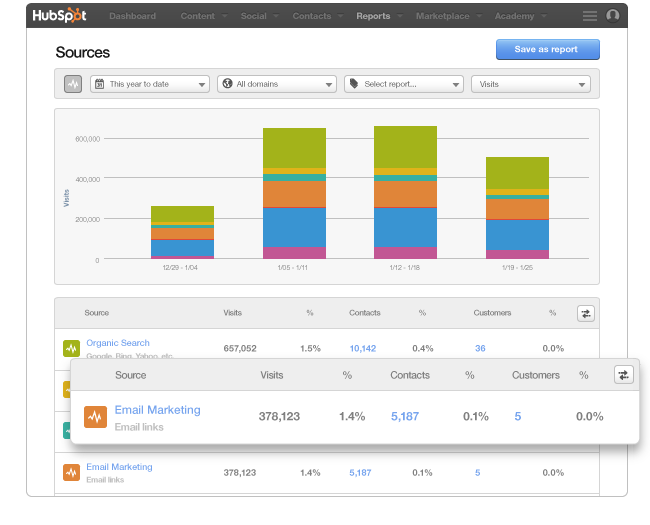
By using this Sources report, you're able to understand what marketing campaigns have the highest ROI. This report displays data from eight different channels to give you a better understanding of where your traffic is coming from. For example, you could get traffic from any of the following sources:
- Organic Search: Visits from organic search results in search engines such as Google and Yahoo
- Referrals: Visits from inbound links on other websites
- Social Media: Visits from social media sites including Facebook, Twitter, LinkedIn, and more
- Email Marketing: Visits from emails you've sent
- Paid Search: Visits from paid search results from the search engines or other PPC providers
- Direct Traffic: Visits from people who type your website address directly into their browser
- Other Campaigns: Visits from people who came from a unique Tracking URL
- Offline Sources: Leads and sources for which there is no source set
The report takes it a step further to show you the number of visits, leads, and customers as a result of those channels, as well as each of their conversion rates.
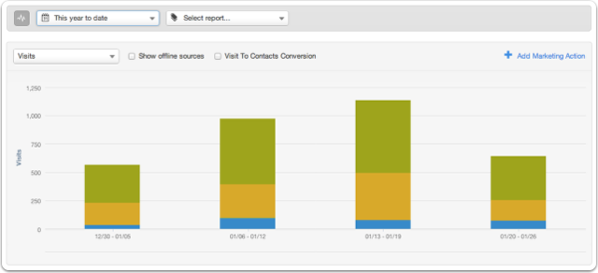
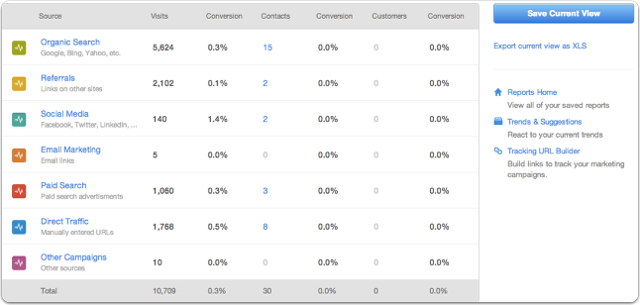
Once you are in the Sources report, you can look at a select time period or your entire history on HubSpot. You can drill into "Organic Search" to see what keywords are driving traffic to your website. You can click into "Social Media" and see what channels are performing best. Read more about using Sources and the information you can gather with this report. For COS customers, you can use this report to see the performance of individual pages.
How to Grow Your Traffic
Sources is the perfect report to figure out your strongest marketing channels. In the example above, organic traffic is the biggest driver of traffic to the site, but social media has the highest conversion rate. By digging into the specifics and adjusting the date range, you can really understand how the different channels perform.
Look at the Sources report on a week to week basis. Figure out what channel is performing the best, and think about what you did that past week to contribute to its success. (Seeing a theme in this article?) If you only used certain channels in a week, you can highlight just those channels to display on the graph. For your next week, plan on replicating your success by either focusing on those channels that performed well or creating similar content that led to the traffic bump.
7. Monthly Goal Progress
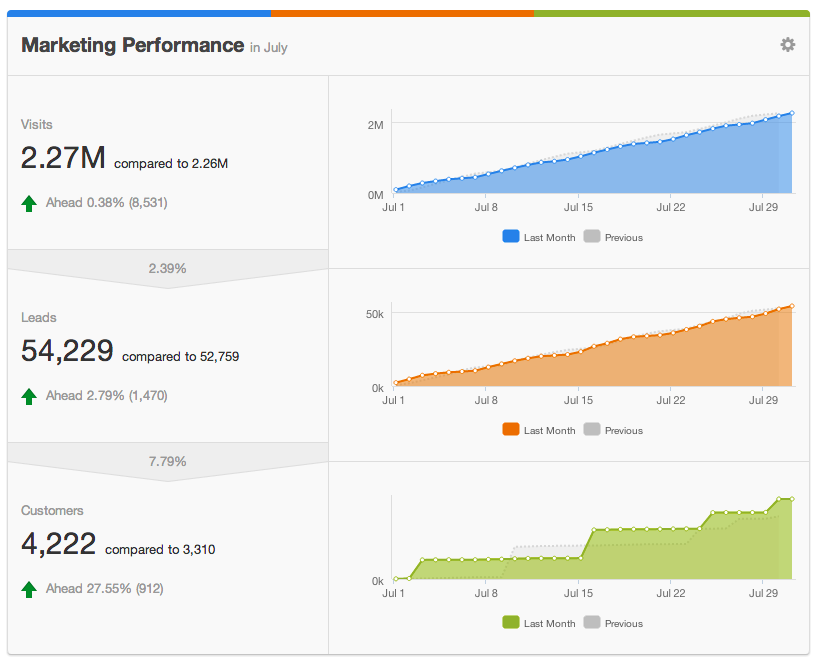
Even though you should be looking at certain metrics on a weekly basis, you should always keep your eye on the prize: your end of month goals. The adjustments you make throughout the month by looking at your data on a weekly basis can really contribute to whether or not you reach your monthly goals.
A great place for HubSpot customers to track monthly progress is on your Dashboard. Using the Dashboard, you're able to set goals month over month and watch your progress each week. You're even able to see how your current monthly progress versus the previous month.
How to Get Ahead of Your Monthly Goal
There isn't one single way to improve your Dashboard metrics besides tracking and iterating on some of the metrics we covered earlier in this post. Drill into the data in your HubSpot account to discover how you are performing against your goals and what you can do to improve going forward. As you can imagine, keeping yourself up-to-date on a weekly basis will help you stay on track.
At the end of the day, your metrics help you be a more informed and nimble marketer. Make a commitment to always be tuned into your metrics, and your marketing will thank you for it.
Want to print this post for future reference?
Click to download a PDF version.
What other metrics do you check on a weekly basis? Which metric could you never live without? Let us know in the comments!