
Last updated: January 31, 2024
Available with any of the following subscriptions, except where noted:
 All products and plans
|
With personalization tokens, you can show personalized content to your contacts based on their property values in your CRM. Personalization can increase engagement with your website and email campaigns. You can personalize content in your HubSpot emails, website pages, and landing pages with any default contact property or custom contact property.
This article covers how to add personalized content to rich text modules in the page editor, the marketing email editor, and in your page and email templates. Learn how to add personalization to your email subject lines and your sales email templates or snippets.
Please note: personalization is not available for landing pages created with a starter template or any pages hosted externally.
How personalization works
Personalization tokens represent property values for CRM objects like contacts or companies. In order for personalization tokens to show a value, the contact viewing it must be a tracked visitor with a contact record in your CRM and a known property value for that token.
Please note: if you insert a personalization token that's associated with a property that can store HTML (e.g., a multi-line text property), any raw HTML within the property's value will appear unformatted when the token renders in your content (e.g., a list item element will appear within an unformatted <li> tag).
Add personalization to your content
-
Navigate to your content:
- Website Pages: In your HubSpot account, navigate to Content > Website Pages.
- Landing Pages: In your HubSpot account, navigate to Content > Landing Pages.
-
- Email: In your HubSpot account, navigate to Marketing > Marketing Email.
Please note: smart content should not be used on a thank you page. When a visitor submits a form and is redirected to a thank you page, there isn't enough time for HubSpot to determine if the contact meets the smart content rules on the thank you page.
- Hover over the name of the content that you're editing and click Edit. If you're creating new content, click Create email/landing page/website page.
- In the editor, click a rich text module to insert a personalization token.
- Place your cursor where you want to insert the personalization token, then click the Personalize dropdown menu in the rich text toolbar.
- Click the Token dropdown menu, then use the search bar to select a Token.
- Select a property from the dropdown menu to use as your token. If you select Contact owner or Company owner, click the User property dropdown menu to select a property from the owner’s user profile to use as your token.
- Set a default value for the token. The default value will be used when the contact does not have a value for that specific property. You can also set global default values for the tokens.
- Click Insert. You'll see the token highlighted in the rich text module with the name of the selected property.
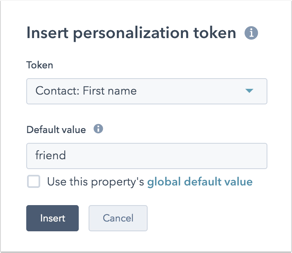
The available tokens and their associated properties depends on the type of content you're creating. Review the sections below to learn which token types you can use while editing your content:
Personalization tokens available for all content types
All content types can include personalization tokens that use a company or contact property.- Company: these tokens use the values for the company properties associated with contacts in your HubSpot database. This includes tokens for company owner, total revenue, industry, and name.
- Contact: these tokens use the values for any contact properties associated with contacts in your HubSpot database. This includes tokens for contact owner, first name, last name, and email.
Personalization tokens available for marketing emails
The personalization tokens available in a marketing email depend on the type of email you're creating:
- All marketing emails: if you're editing a regular marketing email or automated marketing email, you can include a personalization tokens related to your office location details or subscription type of your email:
- Office Location: these tokens are from the email footer information in your settings. This includes tokens for city, state, and zip code.
- Subscription type: this token uses the name of the email's subscription type.
- Automated marketing emails: if you have a Marketing Hub Professional or Enterprise account, and you have Edit access to workflows, you can insert a personalization token into an automated marketing email that matches the type of record that will be enrolled in your workflow:
- Deal: these tokens use the values for the deal properties associated with deals in your HubSpot database. This includes tokens for the deal owner, amount, and closed won date.
- Ticket: if you have a Service Hub Starter, Professional, or Enterprise account, you can use ticket properties associated with tickets in your HubSpot database.
- Custom object: if you have an Enterprise account, you can use properties from any custom objects you've created.
- Subscription: use a property from a subscription record associated with the recipient.
- Invoice: use a property from an enrolled invoice record.
- Quote: use a property from an enrolled quote record.
- Cart: use a property from an enrolled cart record. Carts can be synced from one of your ecommerce accounts using data sync:
- In your HubSpot account, navigate to CRM > Contacts.
- Click the Contacts dropdown menu then select Carts.
- Click Set up data sync then follow the prompts to connect HubSpot and Shopify using data sync.
Please note:
- If you insert a custom object personalization token into your automated marketing email, it will only render the associated property if you're using the email in a workflow based on your custom object.
- If the name of your custom object contains a hyphen (e.g., custom-object), the email will not be able to render personalization tokens for properties of that object. Learn how to edit the name of your custom object.
- If you select a date property (e.g., Date of last meeting booked in meetings tool), the date will be rendered in your email, but the time and timezone data will be omitted.
If you're sending a test email, only contact and company personalization tokens can be tested when you use the Receive email as specific contact dropdown menu. Learn more about sending test emails in this article.
Preview personalization
Please note: if you don't set a default value, CONTACT.PROPERTYNAME will display in the test email or page preview, and no value will be displayed in the live content.
- To preview how personalization will appear on your landing pages and website pages, click Preview in the upper right to preview your page. To preview the page as a specific contact, click the Choose a contact to preview dropdown menu and select a contact.
- To preview personalization in an email, click the Actions dropdown menu in the upper right and select Preview to preview your email. To preview the email as a specific contact, click the Preview as a specific contact dropdown menu and select a contact.
Add personalization to a coded template
Designers building a coded template can add personalization tokens to the template manually. Keep in mind that the token needs to contain the supported variable along with the contact property name you wish to use for personalization.
For example, if you want to use the First Name contact property, you'll include the name of the property with its appropriate variable. The token will look like this within your coded template:

You can manage the default values for any personalization tokens being used in your settings. Learn more about using personalization with HubL filters and the content_by_id HubL function in our developer documentation.
Please note: when using personalization tokens in a quote, HubSpot will not render them dynamically. Instead, the token is rendered at the time of publishing the quote, and will not update upon signing. For this reason, you should not use personalization tokens for properties that are updated after a quote is published, including: Payment status, Payment date, Esign date, and Esign completed signatures.
