Last updated: April 3, 2024
Available with any of the following subscriptions, except where noted:
 All products and plans
|
View performance for a specific page or blog post
-
Navigate to your content:
- Website Pages: In your HubSpot account, navigate to Content > Website Pages.
- Landing Pages: In your HubSpot account, navigate to Content > Landing Pages.
- Blog: In your HubSpot account, navigate to Content > Blog.
- Click the name of the content.
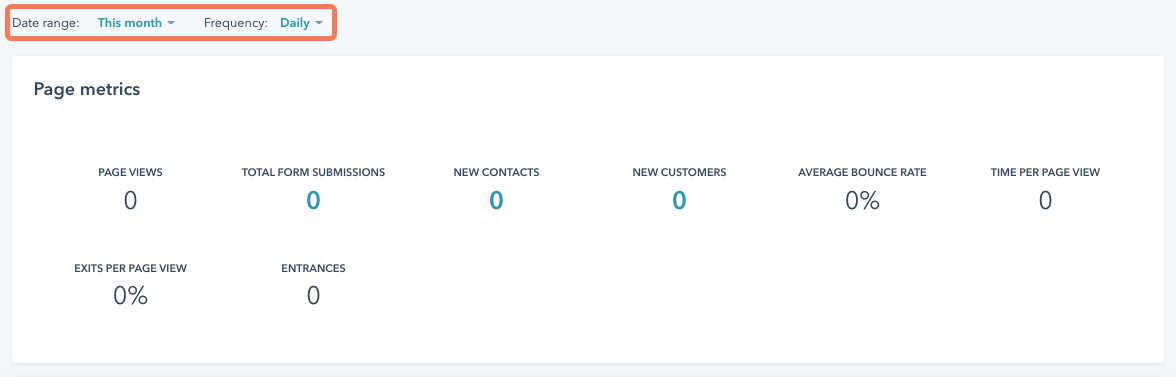
- To analyze data over a specific period of time, click the Date range
dropdown menu at the top of the page and select a time frame.
Performance
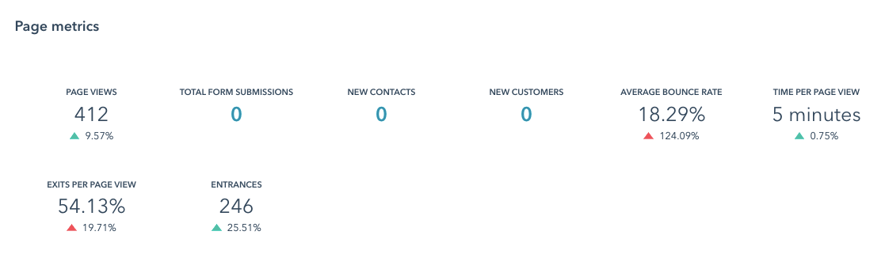
The Performance tab shows detailed metrics on content performance. Marketing Hub Enterprise accounts also have revenue attribution data based on interactions from contacts associated with closed won deals. Views and submissions from excluded IP addresses or referrers will not be reflected in the totals.
- Page Views: the number of times this content was loaded on a web browser.
-
Total Form Submissions: the number of form submissions on this content.
-
New Contacts: the number of new contacts created from this content.
-
New Customers: the number of customers who originally converted on this content that currently have the lifecycle stage of
customer . -
Average Bounce Rate: the percentage of sessions that started on this content and did not move to another page on your site.
-
Time Per Page View: the total amount of time visitors spent viewing this content, divided by the total number of views. This calculation does not include visitors who left the site after viewing only this content.
-
Exits Per Page View: the percentage of sessions that ended after viewing this content.
-
Entrances: the number of sessions where this was the first content viewed.
Please note: submissions from an embedded scheduling widget will be reflected in Total Form Submissions, but not New Contacts.
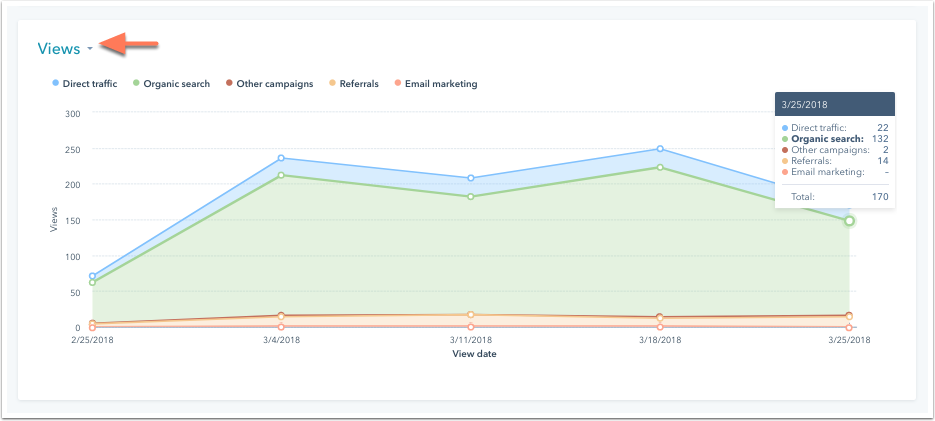
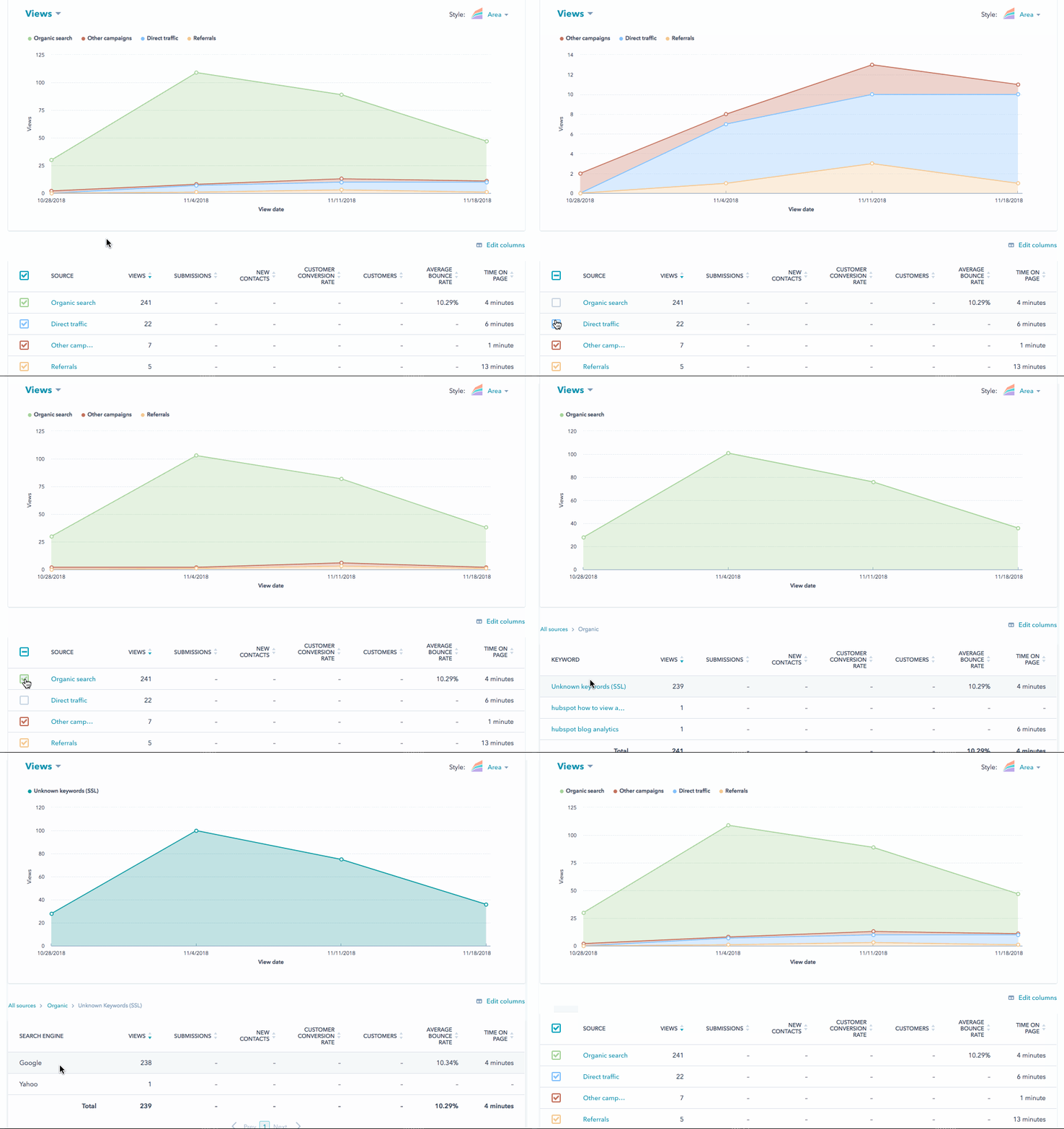
Below your metrics summary is a data visualization chart that plots one metric over time, broken down by source. Each source is labeled at the top of the chart with a corresponding color bubble. In the chart, each source type indicates how a visitor started their session on your site or blog.
- To see a different metric in the data visualization chart, click the dropdown menu in the upper left and select a metric.
- Hover over a specific point on the chart to view a breakdown of its statistics.
- To change the time frame for these charts, click the Frequency dropdown menu at the top of the page and select Daily, Weekly, or Monthly.
Below the data visualization chart is a table showing the performance data for each source. Clear the checkbox next to a source to remove it from the chart. Click a source in the table to drill down into specific source data.
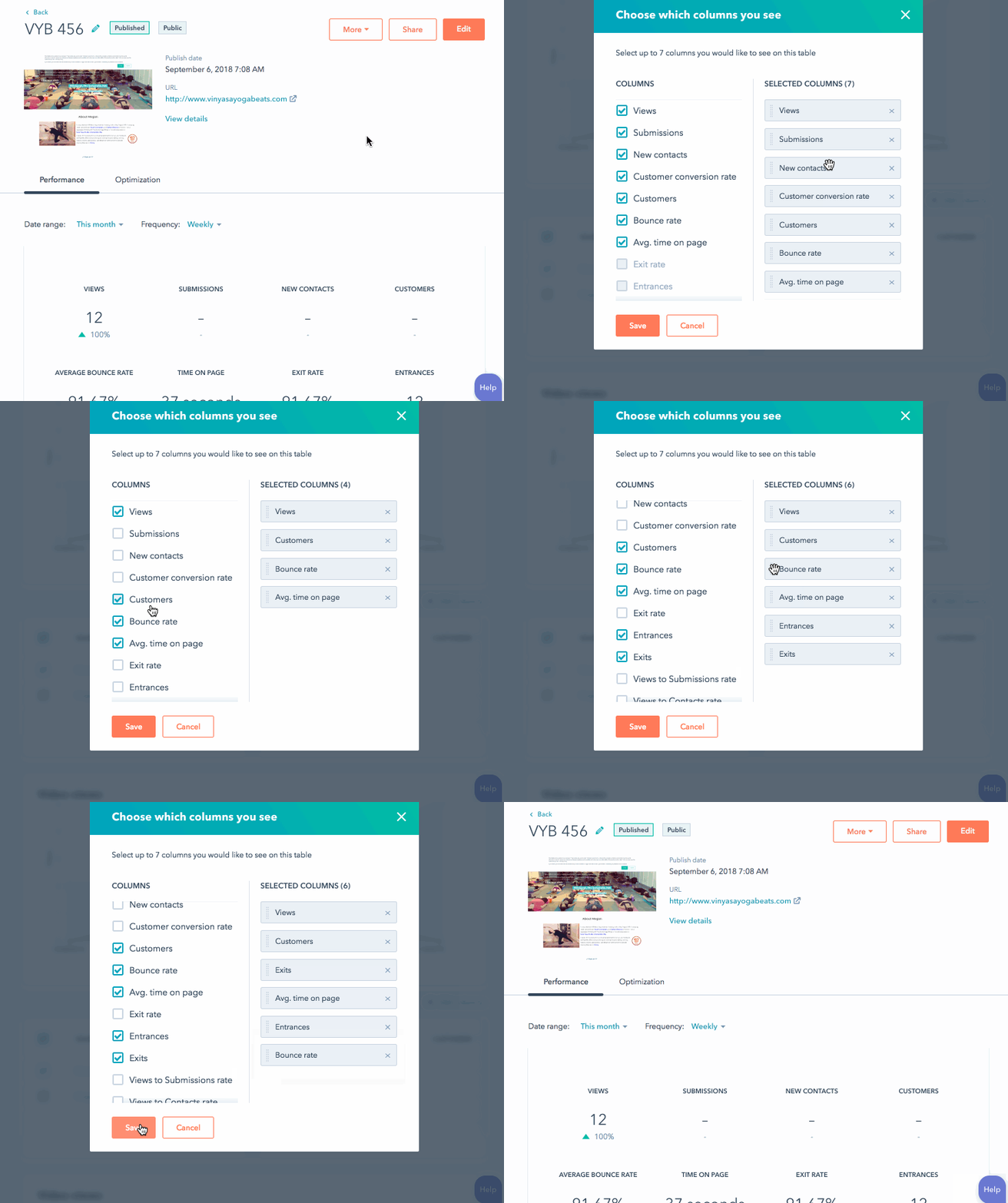
- At the top of the table, click Edit columns.
- In the dialog box, select the checkboxes next to the metrics you want to include. No more than seven metrics can be selected at one time.
- To remove a metric from the Selected Columns section, click the X next to its name.
- To change the order of your metrics, click a metric and drag it into position.
-
Click Save.
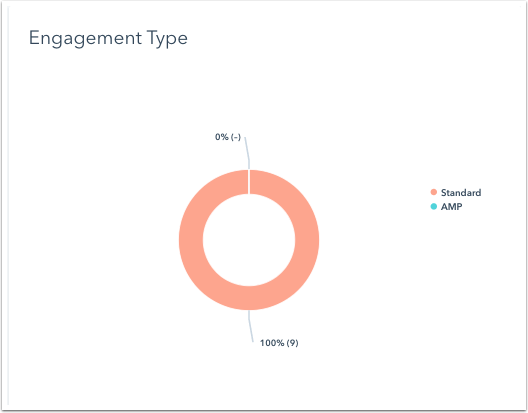
Engagement type (blog posts only)
If you've enabled the AMP version of a blog post, this chart will show how many visitors viewed the AMP version on their mobile device compared to how many visitors viewed the standard version on desktop.
Video analytics
If you've added videos to your content, Video views and Video retention reports will be available. To view video data for A/B tested pages, click the Variation dropdown menu and select a variation. Video data cannot be combined for multiple variations.
Optimization
On the Optimization tab, there are recommendations to improve your content's performance in search engine results. If you've turned on the Google Search Console integration, you can see more detailed information from Google about how your page is performing for specific search terms.
Learn more about how to view SEO recommendations in HubSpot for your content.
Please note: if data isn't populating in the Optimization tab, learn more about issues that can prevent HubSpot's tools from crawling your site.
Smart content
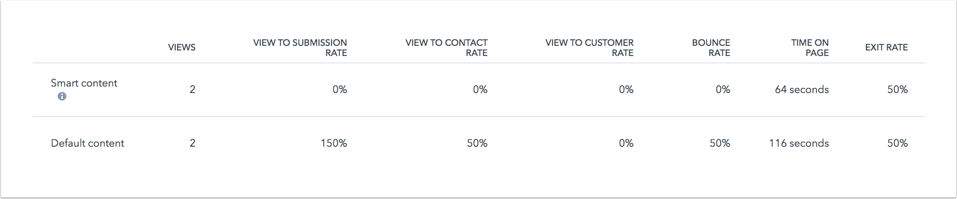
On the Smart Content tab, accounts with access to smart content will display analytics for how the smart content performed compared to the default content. This tab will only appear for pages or posts with published smart content.
Please note: smart content reporting isn't available for global smart content.
- Click the Smart content tab to see a breakdown of how smart content performed compared to default content.
- To change the time frame for this report, click the Frequency dropdown menu at the top of the page and select Daily, Weekly, or Monthly.
- To see a different metric in this report, click the dropdown menu in the upper left and select a metric.
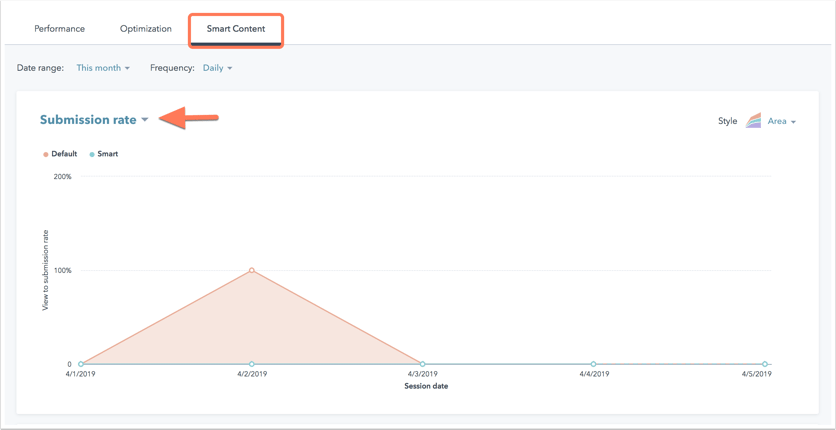
Below the chart is a breakdown of how visitors engaged with your content based on whether or not a smart content rule was applied. This breakdown does not include sources data.